


NotebookLM Advanced Guide 2026: Custom Instructions, Deep Research, and Gemini Workflows
NotebookLM has changed significantly since its launch. If your workflow is still "upload a PDF, ask a question, copy the answer," you're missing most of what the tool can do now. Google shipped Custom Instructions with 10,000-character prompts, Deep Research for automated web scanning, Gemini integration for cross-notebook queries, and Video Overviews with cinematic animations — all within the last few months. This guide walks through each feature with specific workflows you can use today.
TL;DR
- Custom Instructions now support 10,000 characters. Role-based prompts with output format controls dramatically improve response quality
- Deep Research scans hundreds of websites and produces sourced reports — ideal for competitive analysis and literature reviews
- Gemini integration lets you mount multiple notebooks and query across them, breaking notebook silos
- Audio & Video Overviews go beyond podcasts: quiz mode, debate mode, cinematic video, and 10 infographic styles
- 4-tier pricing (Free / Plus / Pro / Ultra) replaced the old 3-tier model — know which tier actually fits your workflow
- NotebookLM vs ChatGPT vs Perplexity — a decision framework so you pick the right tool for each task
Custom Instructions: The Fastest Way to Improve Response Quality
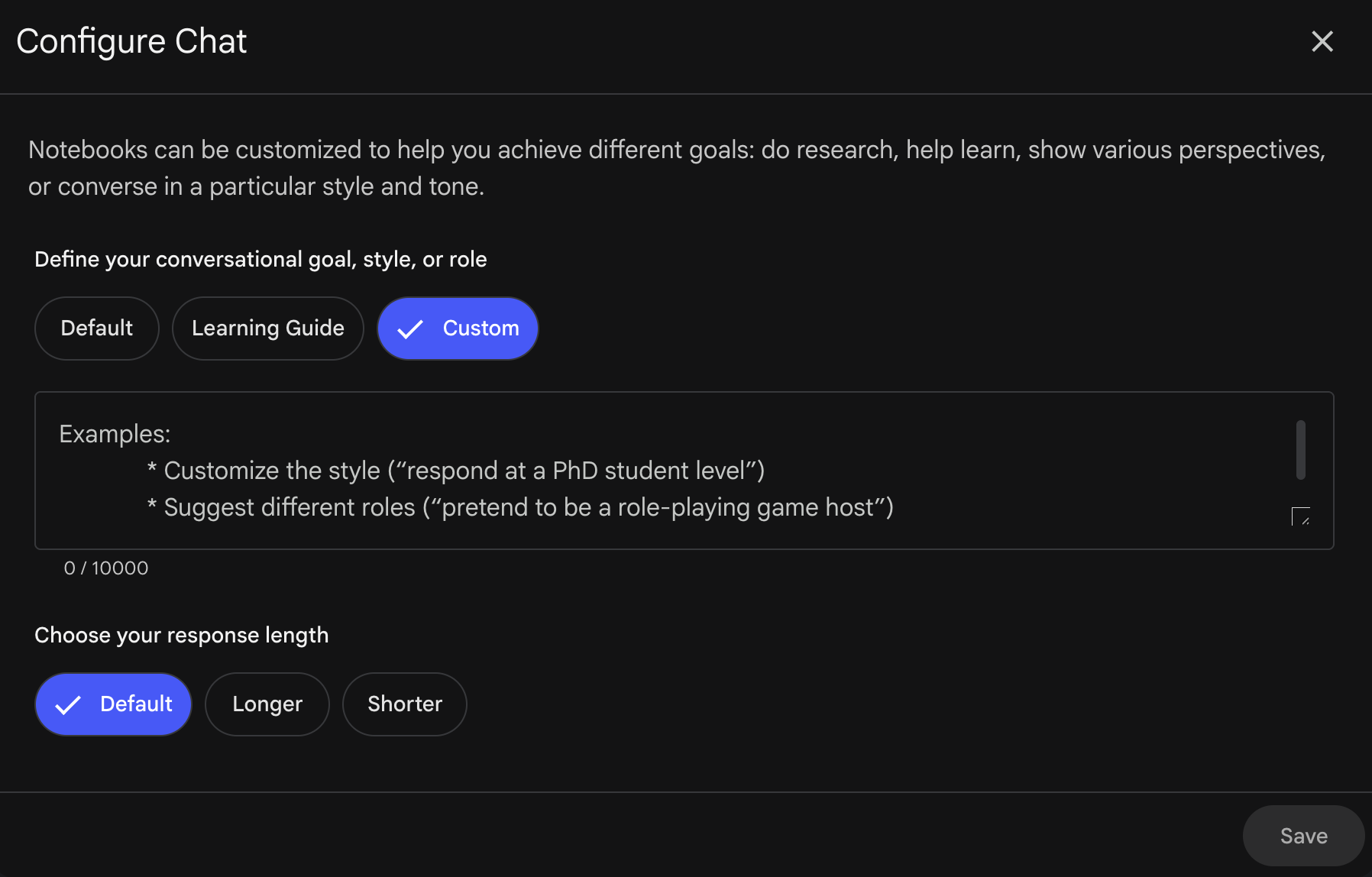
From hands-on testing, Custom Instructions are the single highest-impact feature most users ignore. The key is being specific about role, context, and output format — not just typing "be helpful."
Two Levels of Instructions
NotebookLM offers two instruction scopes:
- Notebook-level Persona (gear icon in settings): Applies to every conversation and all Studio outputs including Audio Overview. Set your baseline role here
- One-off chat instructions: Affects only the current response. Use for quick adjustments without changing the persona
The recommended approach: set a strong persona at the notebook level, then fine-tune with one-off instructions as needed.
3 Ready-to-Use Prompt Templates
Research Advisor: "You are a rigorous academic research advisor. Always include precise quotes from sources with page/section references, identify contradictions across sources, and clearly distinguish between established facts and inferences."
Learning Coach: "You are a patient but demanding mentor. Use Socratic questioning instead of giving direct answers. When my understanding is wrong, correct me with specific examples from the source material."
Content Strategist: "You are a senior content strategy consultant. When analyzing materials, focus on: (1) questions readers are most likely to ask, (2) gaps in existing content, (3) actionable recommendations. Present outputs in table format."
These aren't generic examples. Each template forces NotebookLM to change its response structure. The Research Advisor makes it cite specific passages instead of paraphrasing. The Learning Coach stops it from just handing you answers. Try one of these in your next notebook and compare the output quality.
Pro Tip: Build a Template Library
Save your best-performing prompts as Notes inside a dedicated "Prompt Templates" notebook. When you start a new project notebook, copy the relevant template into Custom Instructions instead of writing from scratch.
Deep Research: Automated Web Research Inside NotebookLM
Launched in late 2025, Deep Research is arguably the most underrated NotebookLM feature. It runs in the background, browses hundreds of web pages, builds a research plan, and delivers a sourced report — all without leaving NotebookLM.
Fast Research vs Deep Research
| Mode | Speed | What It Does | Best For |
|---|---|---|---|
| Fast Research | Seconds | Quick web lookup, returns brief answers | Fact-checking, filling a single knowledge gap |
| Deep Research | Minutes | Automated multi-site research with sourced report | Literature reviews, competitive analysis, trend mapping |
To access either mode: open the "Add Source" panel, select "Web," and choose Fast or Deep.
Real-World Use Case: Competitive Analysis
This is where Deep Research delivers the most value. Say you have Product A's documentation fully loaded in your notebook, but you need to understand competitors B and C. Previously, you'd search manually, compile notes, then upload everything. Now:
- Prompt: "Research products that compete directly with [Product A], comparing features, pricing, and user sentiment"
- Deep Research browses the web, creates a structured report with citations
- One-click import adds the report and all cited sources into your notebook
Those imported sources are now available for all future conversations, Audio Overviews, and cross-referencing. This single workflow replaces hours of manual research.
Gemini Integration: Cross-Notebook Queries
The most common NotebookLM complaint has always been notebook silos — each notebook is isolated with no way to search across them. Google shipped the fix in early 2026: mount NotebookLM notebooks directly as data sources in the Gemini App.
How to Set It Up
- Open the Gemini App and click the "+" button in the chat input
- Select the NotebookLM notebooks you want to query
- Mount multiple notebooks across different topics simultaneously
Now you can ask Gemini questions that span multiple notebooks. For example: "Based on my product research and market trends notebooks, what competitive advantages does this product have in 2026?" Gemini searches across all mounted notebooks and synthesizes an answer.
Bonus: Gemini has built-in web search, so it fills in real-time information missing from your notebooks. No more cramming everything into one giant notebook.
Audio & Video Overviews: Beyond AI Podcasts
Most people know Audio Overview as "AI-generated podcast episodes." That's only the starting point. With the right prompts and the new March 2026 updates, you can produce completely different output formats.
Audio Overview Formats
| Format | Style | Best For | How to Access |
|---|---|---|---|
| Deep Dive | Two-host in-depth conversation | Fully understanding complex topics | Built-in preset |
| Brief | Single-narrator summary | Quick overview of key points | Built-in preset |
| Lecture | Single-host, ~30-minute format | Structured learning | Built-in preset |
| Debate | Opposing viewpoints discussion | Exploring multiple perspectives | Customize field prompt |
Deep Dive, Brief, and Lecture are built-in UI presets. For Debate or Critique formats, specify the desired style in the Customize field.
Full-length Audio Overviews now work in 80+ languages, not just English — useful for language immersion or reaching non-English audiences.
Video Overviews and Infographic Styles
New in 2026, Video Overviews generate cinematic deep-dive videos with fluid animations from your sources. These are available alongside Audio Overviews in the Studio panel.
NotebookLM also now supports 10 infographic styles: Sketch Note, Kawaii, Professional, Scientific, Anime, Clay, Editorial, Instructional, Bento Grid, and Bricks. Combined with slide deck export (now editable and exportable as PPTX), these make NotebookLM a surprisingly capable presentation tool.
Interactive Mode and Flashcards
Two features worth highlighting:
- Interactive Mode: While listening to an Audio Overview, pause and type a question. The AI answers using your sources, then resumes playback. Turns passive listening into active learning
- Flashcards & Quizzes: NotebookLM generates flashcards from your sources with "Got it" / "Missed it" tracking that saves progress across sessions. Great for exam prep or retaining key facts from research
NotebookLM Pricing in 2026: 4 Tiers Explained
Google restructured NotebookLM pricing into four tiers. Here's what actually matters for choosing between them:
| Free | Plus | Pro | Ultra | |
|---|---|---|---|---|
| Price | $0 | ~$14/user/mo (Workspace Standard) | $19.99/mo (Google AI Pro) | $249.99/mo (Google AI Ultra) |
| Sources/notebook | 50 | 100 | 300 | 600 |
| Daily chats | 50 | — | 500 | 5,000 |
| Audio Overviews/day | 3 | — | 20 | 200 |
| Deep Research | Limited | — | Yes | 200/day |
| Video Overviews | Limited | — | Yes | 200/day |
My recommendation: Most individual users hit the Free tier's 50-source limit before anything else. If that's your bottleneck, Pro at $19.99/month (bundled with Google AI Pro, which also includes Gemini Advanced) offers the best value. Plus only makes sense if you're already on Google Workspace. Ultra is for teams running large-scale research operations.
Free Tier Workarounds
If you're not ready to pay:
- Merge related files into single documents to reduce source count (watch for retrieval accuracy drops with very large files)
- Use Gemini mounting to spread data across multiple notebooks and query across them
- Curate aggressively: only upload sources directly relevant to your research question
NotebookLM vs ChatGPT vs Perplexity: When to Use Which
These three tools serve different purposes. Here's a practical decision framework based on hands-on use:
| Scenario | Best Choice | Why |
|---|---|---|
| Deep analysis of your own documents | NotebookLM | Closed knowledge base, grounded in your sources, near-zero hallucination |
| Real-time web research with citations | Perplexity | Live search with automatic source links |
| Open-ended brainstorming and drafting | ChatGPT | Strongest at creative generation and open-ended conversation |
| AI podcast or video from your materials | NotebookLM | Exclusive feature — no competing tool matches it |
| Building a persistent knowledge base | NotebookLM | Source management + persistent conversations + Gemini bridge |
Chaining Tools for Maximum Efficiency
The most effective approach isn't picking one tool — it's chaining them:
- Perplexity for sourcing: Search for the latest information and collect high-quality URLs
- NotebookLM for deep analysis: Import those sources for in-depth analysis, cross-referencing, and Audio/Video generation
- ChatGPT for ideation: When you need to generate new ideas or draft content from your analysis
This workflow gives you both precision (grounded sources) and breadth (creative expansion) without compromising on either.
Common Pain Points and Fixes
Long Document Truncation
When uploading very long documents, NotebookLM may only process the first portion, potentially generating incomplete or fabricated answers for content near the end. Fix: Split long documents into shorter segments (under 100 pages per PDF) and upload separately. Always verify important answers by asking "Which source and section does this information come from?"
Export Limitations
NotebookLM exports to Google Docs, Sheets, and PDF. Slide decks can now be exported as PPTX. For Notion or Obsidian workflows, export to Google Docs first and copy over — not ideal, but it's the current best option.
EPUB Support
As of early 2026, NotebookLM accepts EPUB files as sources. If you've been converting ebooks to PDF before uploading, you can now skip that step.
Conclusion
NotebookLM's value isn't in any single feature — it's in how you combine Custom Instructions, Deep Research, Gemini integration, and the Studio tools (Audio, Video, Infographics) into workflows that match how you actually work. Start with Custom Instructions: spend 5 minutes setting up a strong persona for your most-used notebook. You'll notice the difference immediately.
If you're already using NotebookLM, try one of the advanced workflows above and share your experience.
FAQ
What's the difference between NotebookLM Free, Plus, Pro, and Ultra?
Free gives you 50 sources per notebook, 50 daily chats, and 3 Audio Overviews. Plus (bundled with Google Workspace Standard at ~$14/user/month) raises source limits to 100. Pro ($19.99/month, bundled with Google AI Pro) gives you 300 sources, 500 chats, and 20 Audio Overviews. Ultra ($249.99/month, bundled with Google AI Ultra) maxes out at 600 sources, 5,000 chats, 200 Audio/Video Overviews, and 200 Deep Research sessions per day. If you routinely hit the 50-source cap or need Deep Research at scale, Pro offers the best value for individual power users.
Does Google use my NotebookLM data to train AI models?
No. Google explicitly states that data uploaded to NotebookLM is not used for AI training and is not reviewed by humans (unless you voluntarily submit feedback). Data is encrypted at rest and in transit. Note that advanced compliance certifications like FERPA primarily apply to Google Workspace for Education editions.
Can I export NotebookLM notes to Notion or Obsidian?
NotebookLM currently supports exporting to Google Docs, Sheets, and PDF. There's no built-in Notion or Obsidian integration. The workaround is to export to Google Docs first and then manually copy. If you need native cross-platform sync, consider alternatives like Elephas that offer direct integrations.
What file types does NotebookLM support as sources?
As of early 2026, NotebookLM supports PDFs, Google Docs, Google Slides, web URLs, plain text, YouTube videos, audio files, and EPUB files. Each source can be up to 500,000 words. You can also use the Deep Research feature to automatically pull in web sources without manual uploads.